A few months ago, while performing a routine cleanup on my website, I decided to take a look at my security configuration. I was reviewing the settings in my Cloudflare dashboard, specifically under the Security tab where the Security level dropdown is located. Without giving it enough thought, I changed the security level from Medium to High. My reasoning was simple: higher security meant better protection against bots, scrapers, and malicious traffic.
However, what seemed like a smart, proactive move ended up creating an invisible wall between my content and genuine visitors, damaging both my user experience and overall search presence. Here is what actually happened, why setting the security level too high was a huge mistake, and how fixing it restored my website’s natural flow.
The Mistake: Setting Cloudflare Security Level to “High”
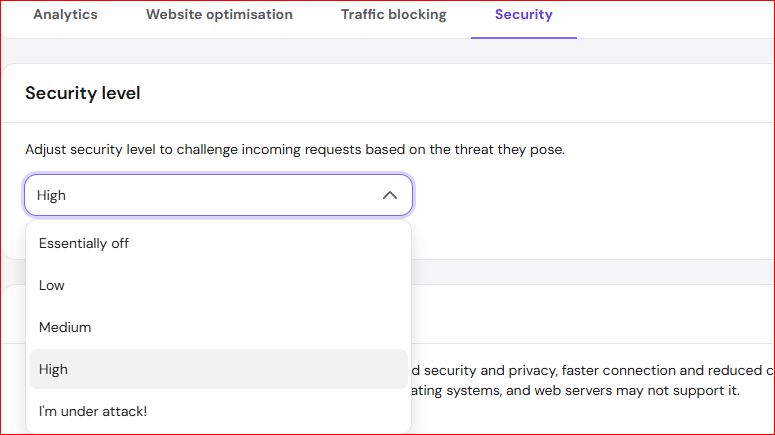
In this image, you can see the Cloudflare Security level setting menu open, with the selected value set to High. The menu presents five distinct options:
- Essentially off
- Low
- Medium
- High
- I’m under attack!
Under normal circumstances, Cloudflare’s default setting is Medium, which balances threat filtering with user convenience. But when I switched the setting to High, Cloudflare began aggressively challenging incoming web requests.
When a website is set to High security, Cloudflare presents interactive Managed Challenges or JavaScript challenges to a much larger percentage of incoming IP addresses, especially those with slightly dynamic IPs, older browsers, or non-standard user agents.
At first, I didn’t notice any immediate downside because my own IP was whitelisted in my browser session. But soon after making the change, I started noticing subtle warning signs:
- Increased Bounce Rate: Casual readers arriving from search engines were greeted with “Verify you are human” turnstiles or delayed loading screens instead of immediately seeing my content. Most web users do not wait around when presented with unnecessary security challenges—they simply hit the back button.
- Indexing and Crawler Friction: While legitimate search engine crawlers like Googlebot usually pass through standard Cloudflare checks, higher threat sensitivity can occasionally cause delays, temporary timeouts, or rate-limiting for automated RSS feeds, third-party monitoring tools, and social media preview generators.
- Frustrated Organic Visitors: Mobile users on cellular networks, whose IP addresses change frequently, were constantly being flagged as potential threats.
I thought I was making my site safer, but in reality, I was placing an annoying barrier in front of everyday readers.
What Real Security Requires (and What Cloudflare’s High Level Doesn’t Do)
Many site owners fall into the trap of thinking that selecting a higher setting automatically improves site safety. In reality, Cloudflare’s Security level menu is designed primarily to adjust threat-score sensitivity for rate-limiting and challenge pages.
Setting the level to High or I’m under attack! is intended for active DDoS mitigation or emergency traffic spikes. Leaving a site on High during normal daily operations creates unnecessary friction for legitimate human traffic.
Real, effective security doesn’t come from forcing every visitor to complete a challenge page; it comes from:
- Keeping your core CMS (such as WordPress or custom frameworks) and plugins updated.
- Using strong authentication and limiting login attempts.
- Implementing strict Web Application Firewall (WAF) rules targeted at specific malicious query patterns rather than blanket traffic filtering.
The Fix: Lowering the Security Level and Fine-Tuning Rules
Once I recognized that the “High” setting was hurting real visitors, I immediately went back into the Cloudflare Security settings panel.
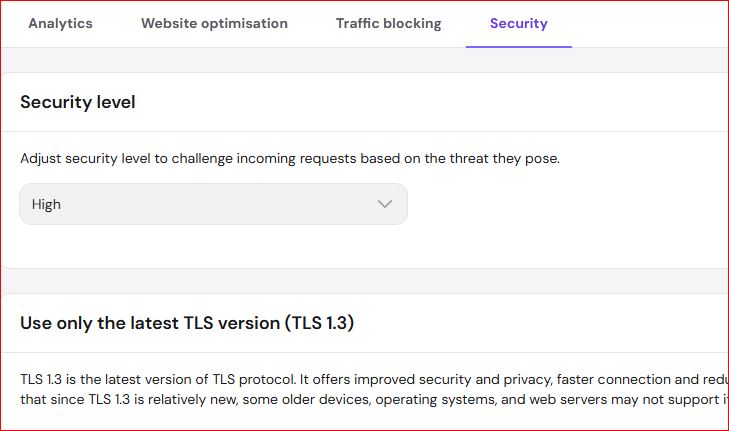
Here is the step-by-step process I took to fix the problem:
1. Resetting the Base Security Level
I opened the dropdown menu under the Security tab and set the Security level back down to Medium (or Low depending on baseline threat levels). This immediately removed the intrusive challenge pages for regular human visitors.
2. Creating Custom Firewall Rules
Instead of relying on a aggressive global threat score, I set up targeted WAF rules to handle actual spam without affecting legitimate visitors:
- Blocked or challenged specific known bad user agents and malicious query strings.
- Restricted access to sensitive areas (like
/wp-adminor login endpoints) using IP restrictions and Cloudflare Zero Trust / Access rules. - Enabled Cloudflare Bot Management / Super Bot Fight Mode (configured specifically to challenge automated bots while allowing verified search crawlers through).
3. Verification and Monitoring
After lowering the threat level back to normal, I tested my website across multiple devices, mobile networks, and VPN connections to verify that pages loaded instantly without prompting human verification checks. Within a few days, my bounce rates normalized, and user session duration returned to healthy levels.
Practical Checklist for Website Owners
If you manage your website’s security through Cloudflare or similar reverse-proxy services, use this simple checklist to avoid making the same mistake:
Keep Security Level on Medium: For 99% of normal blogs and content websites, Cloudflare’s default Medium setting provides the best balance between threat filtering and seamless visitor access.
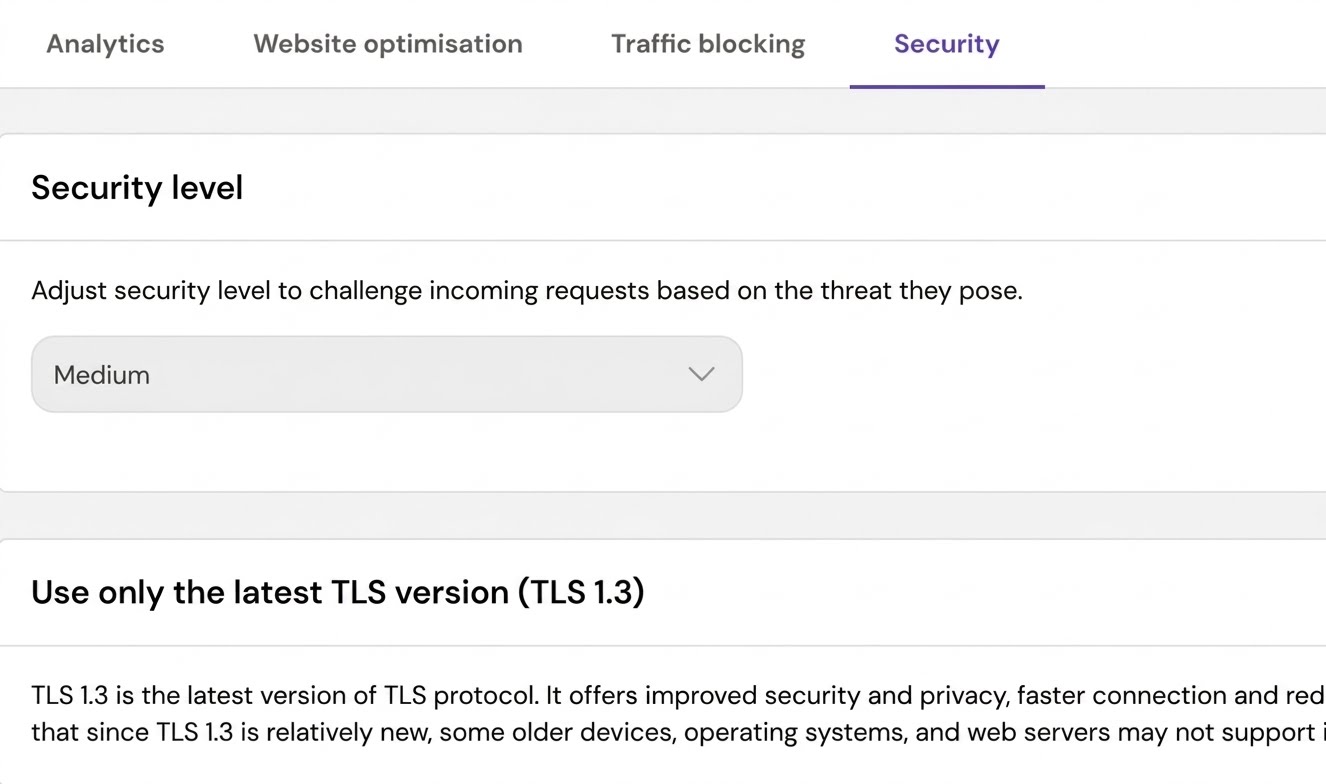
Reserve “High” or “I’m under attack!” for Emergencies: Only toggle these settings on during active Layer 7 DDoS attacks or severe spam bursts. Switch back to Medium as soon as traffic stabilizes.
- Test in Incognito/Mobile: Periodically test your site from a mobile data connection or incognito window to ensure real users aren’t seeing constant challenge screens.
- Use Custom WAF Rules Instead of Global Locks: Protect specific URLs (like login pages) individually rather than imposing high threat thresholds across your entire public blog.
- Monitor Analytics and Logs: Watch your Cloudflare Security events log to see how many legitimate visitors are receiving challenges versus actual blocked threats.
By keeping your security configuration smart, targeted, and user-friendly, you protect your site without sacrificing the user experience and organic traffic you worked so hard to build.
Leave a Reply