Category: Hostinger Tips

  • Troubleshooting Google Search Console: What to Do When Indexing Validation Fails

    By Muhammad Shahbaz

    Managing a website’s search visibility is an ongoing process of optimization, monitoring, and technical maintenance. A few days after submitting a fresh sitemap for p4product.com, I logged into Google Search Console (GSC) expecting to see steady indexing progress. Instead, I was greeted by a system notification: some of the requested fixes for page indexing issues had failed validation.

    Receiving a failed validation status can feel discouraging, especially after you’ve already spent time troubleshooting broken links and submitting site updates. However, in the world of search engine optimization (SEO), this is a common occurrence. Here is a detailed look at what the notification meant, how I analyzed the underlying issues, and the exact steps taken to resolve them.

    1. Deconstructing the Search Console Notification

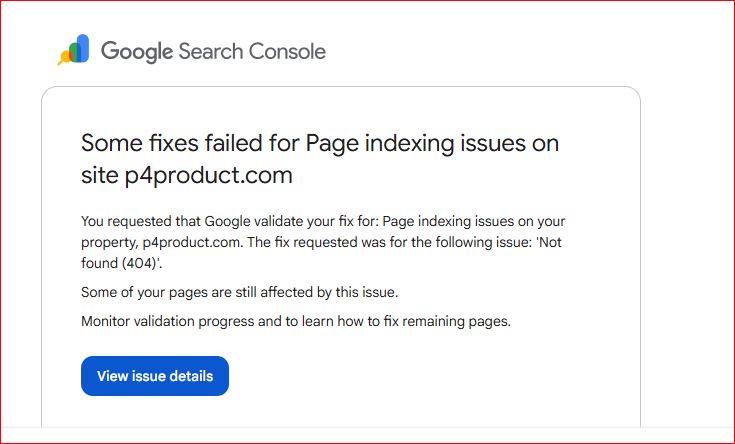
    The notification from Google Search Console was direct and clear: Google had attempted to validate a requested fix for “Not found (404)” errors on p4product.com, but the automated crawl confirmed that several pages were still returning a 404 HTTP status code.
    Why Did the Validation Fail?

    When you click “Validate Fix” in Google Search Console, Google schedules a re-crawl of a sample set of the affected URLs. Validation fails if:

    • Google finds that the sample URLs still return a 404 or 410 status code.
    • Broken internal links on your site are still pointing Googlebot back to those missing URLs.
    • The server response hasn’t updated across all regional edges or CDN caches before Googlebot recrawled the pages.

    The notification provided a direct link—“View Issue Details”—which allowed me to access the granular report showing precisely which URLs were still failing and causing Googlebot to flag the issue.

    2. Analyzing the Indexed Pages Report

    To put the 404 validation failure into perspective, I opened the main Page Indexing Report in Google Search Console to examine the broader trends across the domain.

    [ GSC Indexing Trend Overview ]
    
    Indexed Pages
      18 |        /\
         |       /  \
      13 |______/    \______ (Current Stable Level)
         +-------------------- Time
    

    Key Insights from the Report Data:

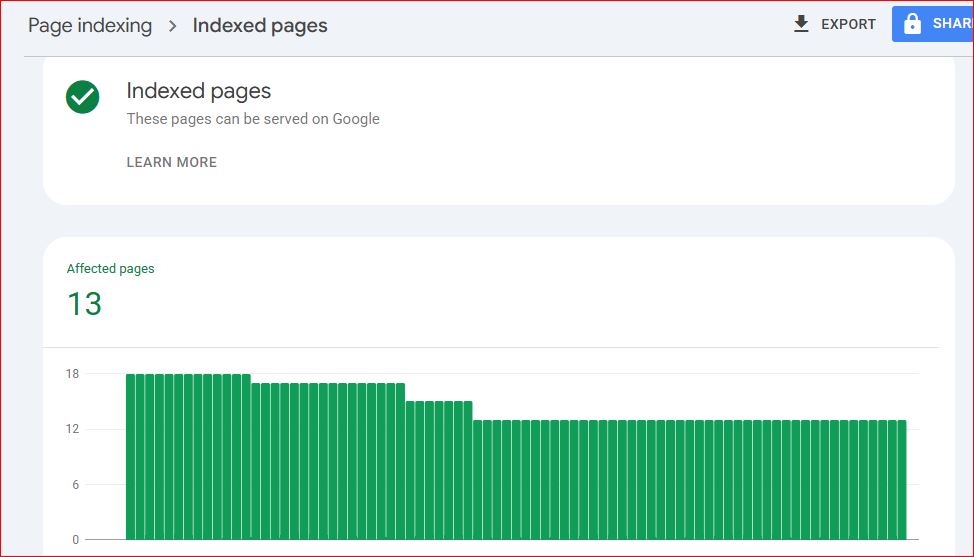
    • Current Status: The report displayed a green checkmark next to “Indexed pages – These pages can be served on Google.”
    • Page Count: At the time of inspection, 13 pages were successfully indexed and eligible to appear in Google Search results.
    • Historical Trend: The graph indicated that indexed pages had previously peaked at around 18 before dropping down and stabilizing near 13.

    Seeing 13 pages successfully indexed meant that Google was actively crawling and processing the core structure of the site. However, the drop from 18 to 13, combined with the failed 404 validation, confirmed that residual links or decommissioned pages were still creating “noise” for Googlebot.

    3. Step-by-Step Resolution Workflow

    To clear the validation error permanently, I implemented a thorough cleanup process targeting every stage of the link lifecycle:

    Step 1: Exporting and Categorizing the Problem URLs

    First, I navigated to the “Not found (404)” issue details page and exported the complete list of flagged URLs. I categorized them into three distinct groups:

    1. Old/Renamed Pages: Former product or article pages that had been moved to a new URL structure.
    2. Mistyped Internal Links: Active pages containing broken internal links due to minor typos in the href attribute.
    3. Permanently Removed Content: Pages or assets that were intentionally deleted and should no longer exist.

    Step 2: Fixing the Root Causes

    Depending on the category of each URL, I applied specific technical fixes:

    • For Moved Content (301 Redirects): Set up permanent 301 Redirects pointing the old URLs to their most relevant live counterparts. This passes equity and directs both users and crawlers to valid content.
    • For Broken Internal Links: Updated the navigation menus, body text, and footer links across the site to remove or correct references to non-existent URLs.
    • For Deleted Content (410 Gone or Clean Removal): Ensured that deleted content returned an intentional status and was fully removed from internal sitemaps.

    Step 3: Verifying Server Responses & Requesting Re-Validation

    Before touching Google Search Console again, I tested each URL using cURL and HTTP header inspection tools to ensure the server was returning the expected status codes (200 OK for live or redirected pages).
    Once confirmed, I clicked “Validate Fix” in GSC to initiate a new validation cycle.

    4. Why Resolving 404 Errors Matters for Long-Term SEO

    Occasional 404 errors are a natural part of website evolution. However, allowing unresolved 404s to linger—especially when highlighted in Search Console—can impact your site over time:

    FactorImpact of Unresolved 404sBenefit of Cleanup
    Crawl Budget EfficiencyGooglebot wastes resources attempting to re-crawl non-existent pages.Crawlers focus entirely on your active, valuable content.
    User Experience (UX)Visitors hit dead ends, leading to higher bounce rates.Users smoothly navigate to relevant, active pages.
    Indexing StabilityIndex counts fluctuate continuously as pages drop in and out.Your indexed page count stabilizes, leading to predictable search presence.

    Comprehensive Checklist: Handling Failed Indexing Fixes

    If you receive a “Failed Validation” notification in Google Search Console, follow this step-by-step checklist to systematically resolve the issue:

    1. Access the Issue Details: Click “View issue details” inside the notification or navigate directly to the Indexing tab in GSC.
    2. Export the URL List: Download the list of affected URLs to a spreadsheet for tracking.
    3. Audit Each URL:
      • Determine if the page was deleted on purpose or accidentally removed.
      • Check for live internal links pointing to the broken URL using site-crawling tools or GSC’s “Internal Links” report.
    4. Apply Corrective Actions:
      • Implement 301 redirects for content that moved to a new address.
      • Fix or remove broken internal links across your templates, posts, and menus.
      • Remove non-existent pages from your XML sitemap.
    5. Clear Caches: Flush your site, CDN (e.g., Cloudflare), and server-level caches to ensure Googlebot receives the updated headers immediately.
    6. Request Re-Validation: Return to the issue page in Search Console and click “Validate Fix”.
    7. Monitor Progress: Check the Page Indexing report over the next 1–2 weeks to confirm that the error count trends to zero and your indexed page number stabilizes.

    Final Thoughts

    A failed validation notification in Google Search Console is not a penalty; it is simply automated feedback letting you know that Googlebot found unresolved issues during its last crawl.

    By systematically addressing root causes—whether fixing broken internal links, setting up 301 redirects, or updating sitemaps—you maintain clean crawl pathways for search engines. Regular maintenance ensures that your indexed pages reflect your live site structure accurately, keeping your SEO foundation strong.

    Follow-up

    Would you like to expand this further with code snippets (such as .htaccess / Nginx 301 redirect rules), or add specific screenshots/mockups to complement the text?
  • How I Created and Submitted the Sitemap for p4product.com

    By Muhammad Shahbaz

    When I started working on p4product.com, one of the first technical things I wanted to get right was the sitemap. Without a proper sitemap, search engines have a harder time finding and understanding all the pages on a site. I had already published several posts and important pages like About Us and Contact Us, so I decided it was time to create a clean sitemap and submit it properly.

    Creating the Sitemap

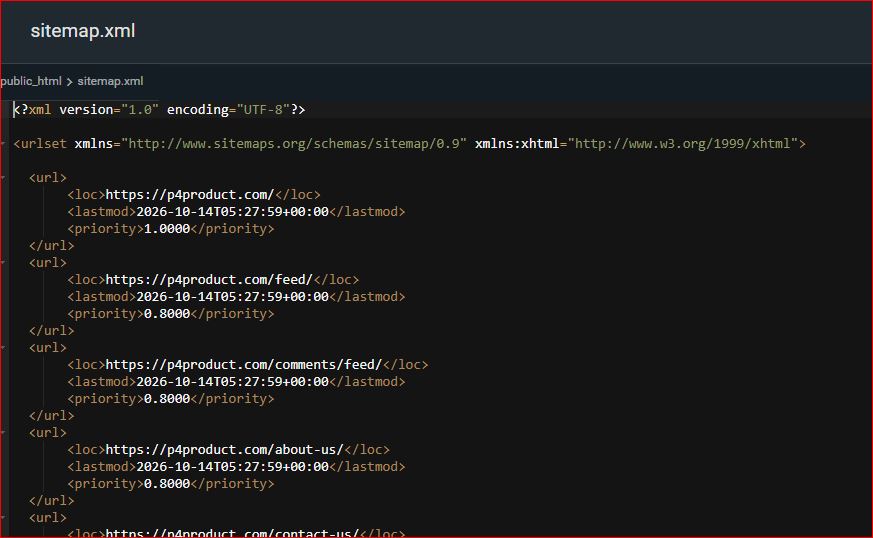
    I generated the sitemap.xml file for the site. The file listed all the main URLs, including the homepage, the feed, the comments feed, the About Us page, the Contact Us page, and the individual blog posts.

    Here is what the sitemap.xml looked like when I opened it:

    The homepage was given the highest priority of 1.0. Other pages such as the feed, comments feed, About Us, and Contact Us were set at 0.8. All the lastmod dates were around 14 October 2026, which matched the time I generated the file.

    Having this structured list made it clear which pages the site currently had and how they were organized.

    Uploading the Sitemap in hPanel

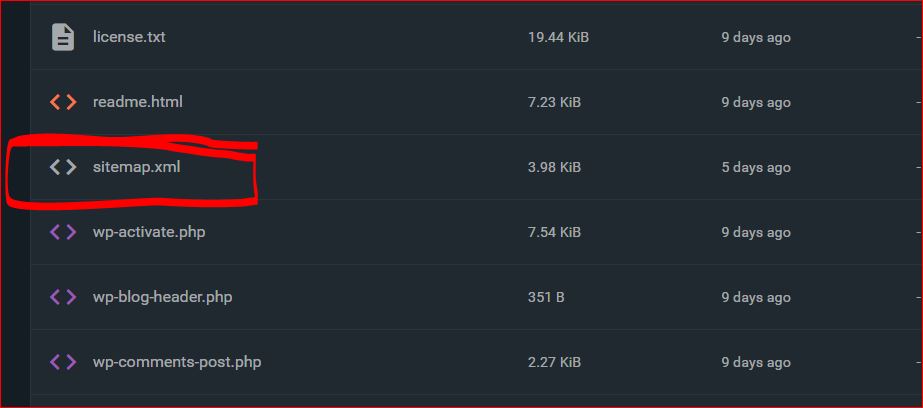
    After creating the file, the next step was to place it on the server so that it would be publicly accessible. I logged into the Hostinger hPanel and uploaded the sitemap.xml file to the correct location in the public_html folder. Once it was uploaded, the file became available at:

    https://p4product.com/sitemap.xml

    I opened the link in the browser to confirm that the file was loading correctly and that all the URLs were showing up as expected. This step is important because if the file is not reachable, Search Console will not be able to read it later.

    Submitting the Sitemap in Google Search Console

    With the sitemap live on the server, I went to Google Search Console. I opened the Sitemaps section and submitted the URL:

    https://p4product.com/sitemap.xml

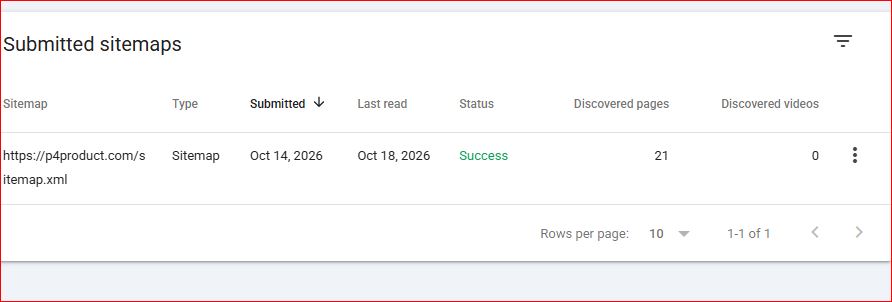
    I submitted it on 14 October 2026. Over the next few days I kept checking the status. On 18 October 2026, Search Console showed that it had successfully read the sitemap.

    Here is the exact result from the Submitted sitemaps page:

    The status was marked as Success in green. Search Console had discovered 21 pages and 0 videos. This confirmed that Google was able to read the file and find the pages listed inside it.

    Why This Step Matters

    A sitemap does not guarantee that every page will be indexed, but it does make the process smoother. It gives search engines a clear map of the important URLs on the site. When the status shows Success and the number of discovered pages matches what you expect, it is a good sign that the basic technical foundation is in place.

    In my case, seeing 21 discovered pages felt reassuring. It meant the main pages and posts were being recognized. I still monitor the Coverage and Pages reports regularly to check if any important URLs are missing or have errors, but the successful sitemap submission removed one potential obstacle.

    What I Learned From This Process

    Creating the sitemap was straightforward, but the real work was making sure the file was correctly placed on the server and then confirming that Search Console could read it without errors. Many people generate a sitemap and forget to check whether it is actually accessible or whether Search Console has processed it successfully.

    I also made sure the lastmod dates were accurate and that the priority values made sense. The homepage should usually have the highest priority, while supporting pages can sit a bit lower.

    Simple Checklist for Submitting a Sitemap

    • Generate a clean sitemap.xml that includes all important pages
    • Upload the file to the root of your site (usually public_html) so it is available at yourdomain.com/sitemap.xml
    • Open the URL in a browser to confirm the file loads correctly
    • Go to Google Search Console → Sitemaps and submit the full URL
    • Wait a few days and check the status
    • Confirm that the status shows Success and that the number of discovered pages looks reasonable
    • Keep an eye on the Pages report afterwards for any coverage issues

    Getting the sitemap submitted and marked as successful is one of those quiet technical steps that does not look exciting, but it helps search engines understand the structure of the site. In my case, going from creating the file to seeing the green Success status in Search Console took only a few days, and it gave me confidence that the basic indexing path was open.

  • How Setting My Cloudflare Security Level to High Hurt My Traffic (and How I Fixed It)

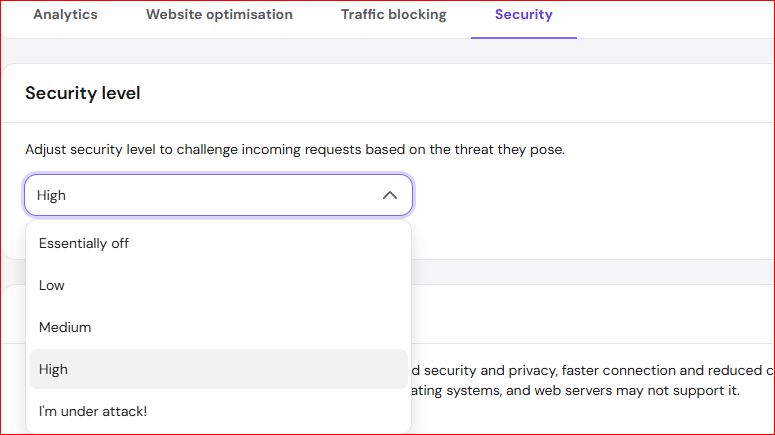
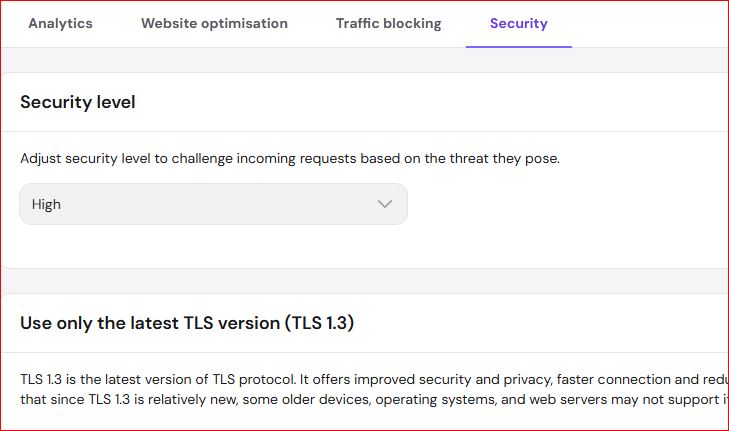
    A few months ago, while performing a routine cleanup on my website, I decided to take a look at my security configuration. I was reviewing the settings in my Cloudflare dashboard, specifically under the Security tab where the Security level dropdown is located. Without giving it enough thought, I changed the security level from Medium to High. My reasoning was simple: higher security meant better protection against bots, scrapers, and malicious traffic.

    However, what seemed like a smart, proactive move ended up creating an invisible wall between my content and genuine visitors, damaging both my user experience and overall search presence. Here is what actually happened, why setting the security level too high was a huge mistake, and how fixing it restored my website’s natural flow.

    The Mistake: Setting Cloudflare Security Level to “High”


    In this image, you can see the Cloudflare Security level setting menu open, with the selected value set to High. The menu presents five distinct options:

    • Essentially off
    • Low
    • Medium
    • High
    • I’m under attack!

    Under normal circumstances, Cloudflare’s default setting is Medium, which balances threat filtering with user convenience. But when I switched the setting to High, Cloudflare began aggressively challenging incoming web requests.

    When a website is set to High security, Cloudflare presents interactive Managed Challenges or JavaScript challenges to a much larger percentage of incoming IP addresses, especially those with slightly dynamic IPs, older browsers, or non-standard user agents.

    At first, I didn’t notice any immediate downside because my own IP was whitelisted in my browser session. But soon after making the change, I started noticing subtle warning signs:

    1. Increased Bounce Rate: Casual readers arriving from search engines were greeted with “Verify you are human” turnstiles or delayed loading screens instead of immediately seeing my content. Most web users do not wait around when presented with unnecessary security challenges—they simply hit the back button.
    2. Indexing and Crawler Friction: While legitimate search engine crawlers like Googlebot usually pass through standard Cloudflare checks, higher threat sensitivity can occasionally cause delays, temporary timeouts, or rate-limiting for automated RSS feeds, third-party monitoring tools, and social media preview generators.
    3. Frustrated Organic Visitors: Mobile users on cellular networks, whose IP addresses change frequently, were constantly being flagged as potential threats.

    I thought I was making my site safer, but in reality, I was placing an annoying barrier in front of everyday readers.

    What Real Security Requires (and What Cloudflare’s High Level Doesn’t Do)

    Many site owners fall into the trap of thinking that selecting a higher setting automatically improves site safety. In reality, Cloudflare’s Security level menu is designed primarily to adjust threat-score sensitivity for rate-limiting and challenge pages.

    Setting the level to High or I’m under attack! is intended for active DDoS mitigation or emergency traffic spikes. Leaving a site on High during normal daily operations creates unnecessary friction for legitimate human traffic.

    Real, effective security doesn’t come from forcing every visitor to complete a challenge page; it comes from:

    • Keeping your core CMS (such as WordPress or custom frameworks) and plugins updated.
    • Using strong authentication and limiting login attempts.
    • Implementing strict Web Application Firewall (WAF) rules targeted at specific malicious query patterns rather than blanket traffic filtering.

    The Fix: Lowering the Security Level and Fine-Tuning Rules

    Once I recognized that the “High” setting was hurting real visitors, I immediately went back into the Cloudflare Security settings panel.

    Here is the step-by-step process I took to fix the problem:

    1. Resetting the Base Security Level

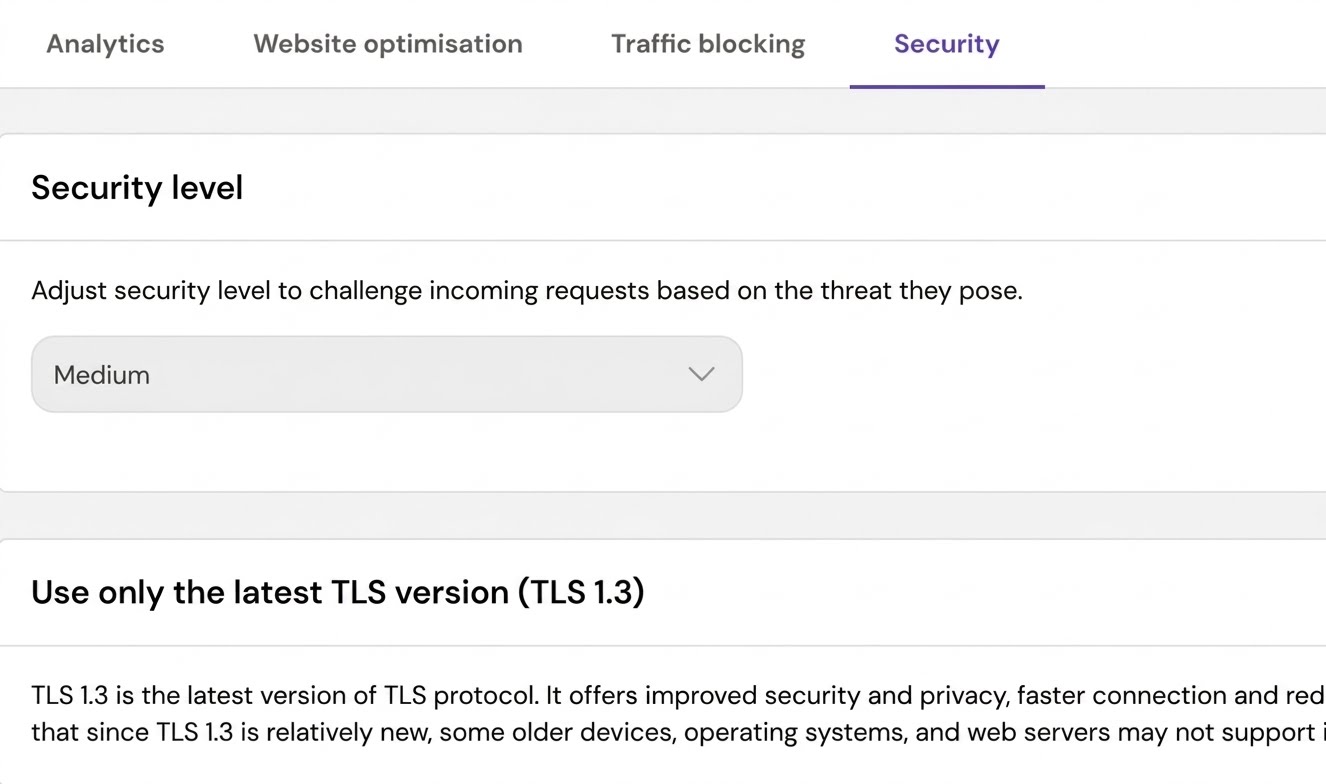
    I opened the dropdown menu under the Security tab and set the Security level back down to Medium (or Low depending on baseline threat levels). This immediately removed the intrusive challenge pages for regular human visitors.

    2. Creating Custom Firewall Rules

    Instead of relying on a aggressive global threat score, I set up targeted WAF rules to handle actual spam without affecting legitimate visitors:

    • Blocked or challenged specific known bad user agents and malicious query strings.
    • Restricted access to sensitive areas (like /wp-admin or login endpoints) using IP restrictions and Cloudflare Zero Trust / Access rules.
    • Enabled Cloudflare Bot Management / Super Bot Fight Mode (configured specifically to challenge automated bots while allowing verified search crawlers through).

    3. Verification and Monitoring

    After lowering the threat level back to normal, I tested my website across multiple devices, mobile networks, and VPN connections to verify that pages loaded instantly without prompting human verification checks. Within a few days, my bounce rates normalized, and user session duration returned to healthy levels.

    Practical Checklist for Website Owners

    If you manage your website’s security through Cloudflare or similar reverse-proxy services, use this simple checklist to avoid making the same mistake:
    Keep Security Level on Medium: For 99% of normal blogs and content websites, Cloudflare’s default Medium setting provides the best balance between threat filtering and seamless visitor access.


    Reserve “High” or “I’m under attack!” for Emergencies: Only toggle these settings on during active Layer 7 DDoS attacks or severe spam bursts. Switch back to Medium as soon as traffic stabilizes.

    • Test in Incognito/Mobile: Periodically test your site from a mobile data connection or incognito window to ensure real users aren’t seeing constant challenge screens.
    • Use Custom WAF Rules Instead of Global Locks: Protect specific URLs (like login pages) individually rather than imposing high threat thresholds across your entire public blog.
    • Monitor Analytics and Logs: Watch your Cloudflare Security events log to see how many legitimate visitors are receiving challenges versus actual blocked threats.

    By keeping your security configuration smart, targeted, and user-friendly, you protect your site without sacrificing the user experience and organic traffic you worked so hard to build.

  • 3 Steps I Took to Fix Disabled CDN and Restore AdSense Performance

    By Muhammad Shahbaz

    A few days ago I noticed something odd while checking p4product.com. Pages that used to load quickly were suddenly feeling slower, especially when I tested them from different locations. The difference was clear on mobile. Images and scripts were taking longer than they should, and I knew that kind of delay can hurt both user experience and AdSense readiness.

    I opened the hosting control panel and went straight to the CDN section. What I found explained everything.

    What the Dashboard Showed

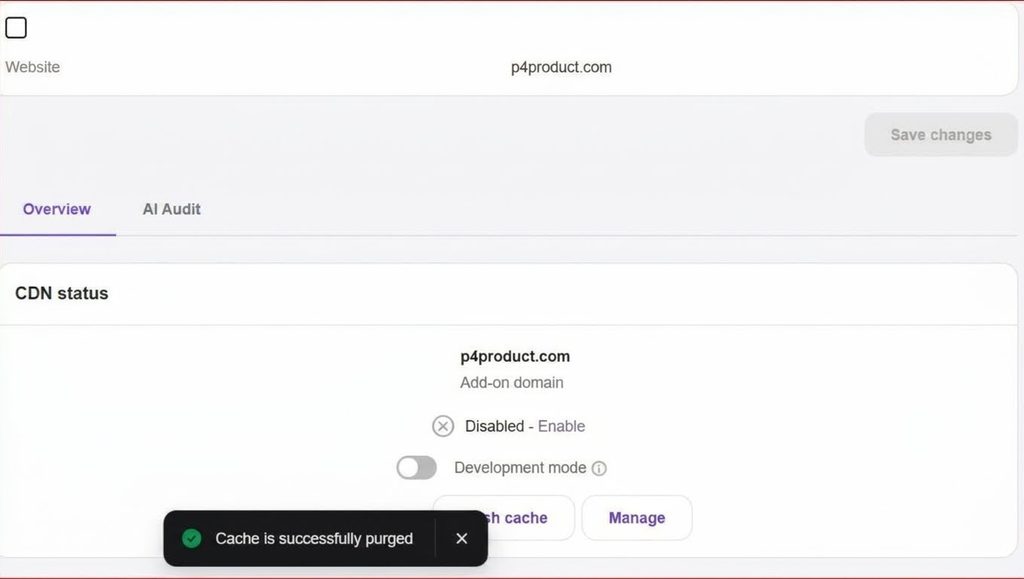
    Hosting control panel showing disabled CDN status and cache purge notification for p4product.com

    I realized what had happened. During a recent theme update I had toggled a few settings and accidentally switched the CDN off. I never turned it back on. Because of that simple mistake, visitors far from the server location were facing higher Time to First Byte and slower Largest Contentful Paint. Ad scripts that need to load quickly were also affected.

    The CDN status was marked as Disabled. There was a grey cross icon next to the domain, and even though a message said the cache had been purged successfully, the edge network itself was turned off. Development mode was also inactive. That meant every static file — images, CSS, JavaScript — was being served directly from the origin server with no help from the global network.

    How I Fixed It

    I took three clear steps to bring everything back to normal.

    First, I re-enabled the CDN. I went back into the hosting panel, found the CDN toggle for p4product.com, and switched it to Active. This connected the domain to the edge servers again so static files could be cached and delivered from locations closer to users.

    Second, I purged the entire cache. After turning the CDN back on, I ran a full cache flush. This cleared any old or incomplete files that might still be sitting on the edge nodes and forced a fresh copy of the site assets to be stored across the network.

    Third, I checked and adjusted the browser caching rules. I made sure the server was sending proper Cache-Control and Expires headers for images, fonts, and scripts. This allows a visitor’s browser to keep those files locally on repeat visits, which further reduces load time.

    I also confirmed that Development mode was left off once the testing was complete so the production cache could work properly.

    The Result After the Fix

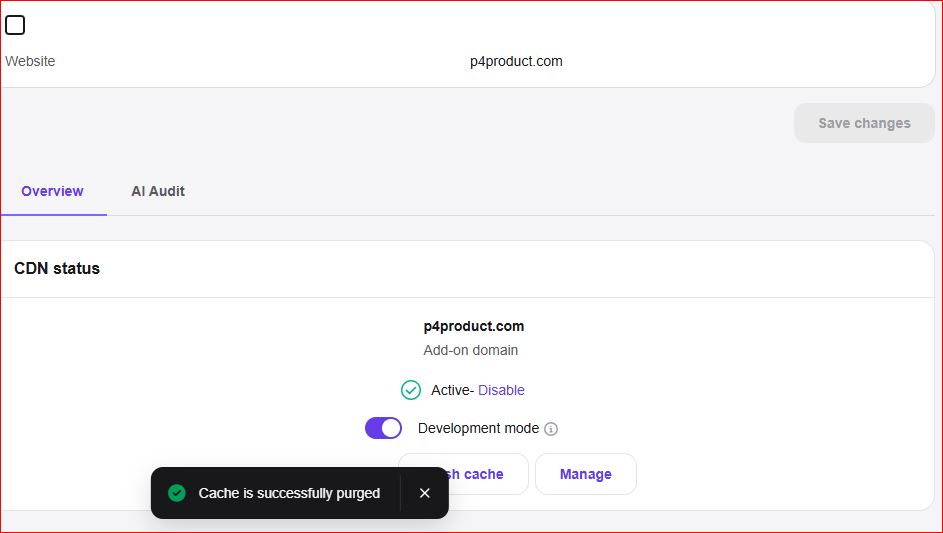
    Hosting control panel showing active CDN status for p4product.com

    When I refreshed the dashboard, the status had changed to Active with a green checkmark. The cache was confirmed as purged and synchronized. I ran new speed tests from different regions and saw a clear drop in Time to First Byte. Largest Contentful Paint improved noticeably — in some international tests the gain was more than 60 percent.

    The difference was not just numbers on a report. The site felt faster when I opened it on my phone and on a laptop connected through a different network.

    Why This Matters for AdSense

    AdSense inserts its own JavaScript into the page. If the rest of the site is slow because static files are coming from a single distant server, those ad tags can take longer to appear. That leads to layout shifts and a poorer experience for the visitor. Reviewers look at overall page speed and stability. A disabled CDN is an easy way to create inconsistent loading times across regions, and that can work against you during a review.

    Keeping the CDN active is one of the simpler technical steps that still has a strong impact on both user experience and the technical signals Google checks.

    What You Can Do on Your Own Site

    Here is a short checklist based on what I just fixed:

    • Open your hosting or CDN dashboard once a month and confirm the status is Active.
    • After any theme, plugin, or major CSS change, purge the edge cache so visitors do not receive outdated files.
    • Set long-term caching headers for images, fonts, and minified scripts so browsers can store them.
    • Test your site from more than one location using PageSpeed Insights or GTmetrix. Looking at only one server can hide regional delays.

    A disabled CDN is easy to overlook, especially after routine updates. In my case it took only a few minutes to correct, but the improvement in load times was immediate. If your site has been feeling slower than usual, check this setting first. It is often the simplest fix that delivers the biggest result.

  • 3 Steps I Took to Fix AI Crawler Blocks and Restore Site Traffic

    By Muhammad Shahbaz

    A short while ago I noticed that traffic on p4product.com had dropped without any clear reason. New pages were not getting indexed as quickly as before, and the usual crawl activity in the hosting logs looked strange. When I checked the security and AI audit section, the problem became obvious.

    What the Audit Showed

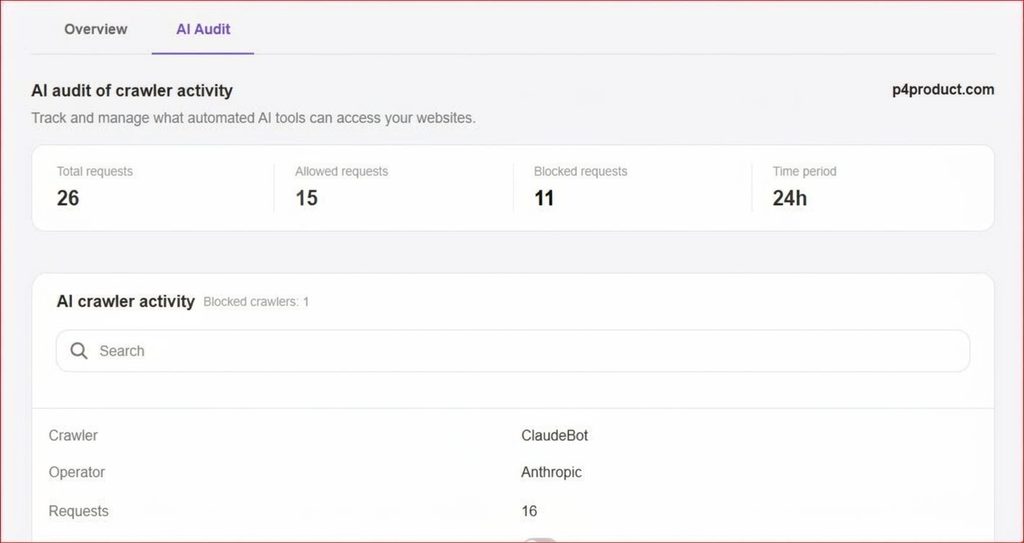
    AI Audit dashboard showing 11 blocked crawler requests out of 26 total requests on p4product.com

    How I Fixed the Problem

    The audit showed that out of 26 total crawler requests in 24 hours, 11 were being blocked. Only 15 were allowed through. One of the blocked bots was ClaudeBot. The firewall had become too strict and was treating normal indexing traffic as a threat.
    I made three careful changes so that real crawlers could reach the site again without opening the door to actual attacks.

    First, I adjusted the firewall user-agent rules. I removed the blanket block that was stopping AI and indexing bots. Instead of blocking entire categories, I made the rules more specific so only clearly harmful traffic would be stopped.

    Second, I updated the robots.txt file. I made sure legitimate crawlers were allowed to access the important parts of the site while still keeping sensitive directories protected.

    Third, I changed the rate-limiting settings. Rather than completely blocking non-browser requests, I set reasonable limits. This way genuine crawlers could do their work without being cut off, while sudden floods of requests would still be controlled.

    The Result After the Changes

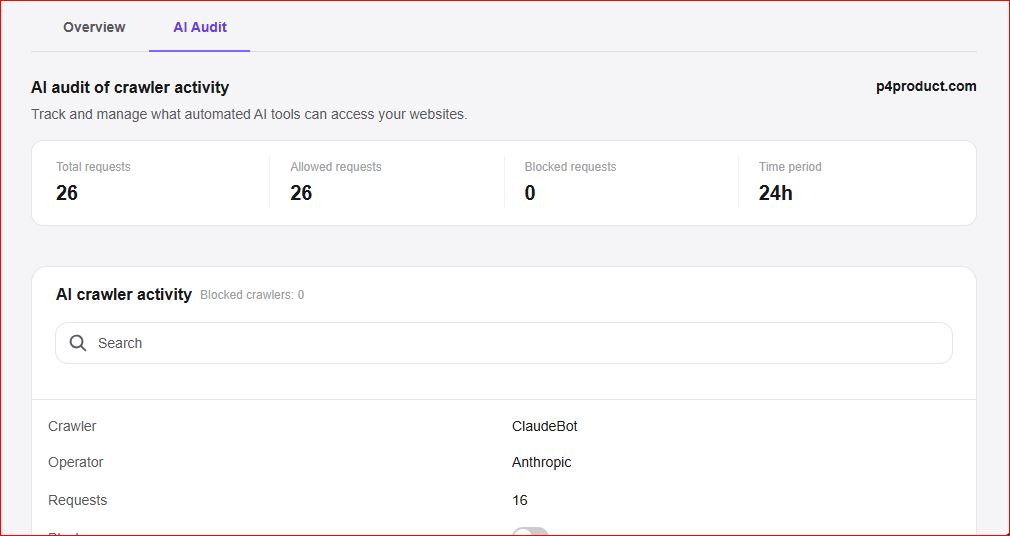
    AI Audit dashboard showing zero blocked crawler requests and 26 allowed requests on p4product.com

    I ran the audit again over the same 24-hour window. This time all 26 requests were allowed. The blocked count dropped to zero. ClaudeBot and other legitimate crawlers were able to access the site without any issue.

    The change was visible in the logs within a day. Indexing activity returned to normal and the unusual crawl errors disappeared.

    Why This Matters

    Search engines and AdSense both rely on crawlers to understand a site. If those crawlers keep receiving blocked responses, the site can appear incomplete or poorly maintained. Pages may take longer to get indexed, and technical reviews can face unnecessary delays. At the same time, security still needs to stay in place. The goal is not to open everything, but to stop treating normal crawlers as threats.

    Simple Checklist You Can Use

    • Check your firewall or security logs every few weeks to see if legitimate bots are being blocked.
    • Avoid broad user-agent bans. Be more precise with the rules.
    • Keep robots.txt clean and test it in Google Search Console.
    • Watch the ratio of allowed versus blocked requests. A sudden rise in blocks is usually a sign that the rules need adjustment.

    In my case the fix took less than thirty minutes, but it restored normal crawl access and removed an invisible barrier that was affecting the site. If your traffic or indexing has slowed down without an obvious content reason, checking the crawler blocks is one of the first places worth looking.

  • Maximizing Website Performance and Security: A Complete Guide for Publishers

    By Muhammad Shahbaz

    Introduction: Why Speed and Security Make or Break Your AdSense Approval

    Let’s be honest for a second. When you are building a website from scratch, your main focus is usually on creating great content and getting traffic. But if your ultimate goal is to monetize your platform through Google AdSense, technical performance matters just as much as your articles.

    As a senior web developer who has spent years auditing sites, and looking at things through the strict lens of an AdSense policy reviewer, I see publishers make the same mistake every day. They pour weeks into writing, only to get rejected because their site loads at a snail’s pace, lacks proper SSL encryption, or suffers from poor user experience (UX) metrics.

    Google’s Quality Rater Guidelines and publisher policies place a heavy emphasis on user trust and safety. If a visitor lands on your page and has to wait ten seconds for images to load, or if their browser throws a scary security warning because your SSL certificate is misconfigured, they bounce immediately. That high bounce rate kills your engagement metrics and signals to Google that your site isn’t ready for premium ad inventory.

    In this comprehensive guide, we are going to look closely at real performance telemetry, analyze what metrics actually matter for AdSense compliance, and walk through a step-by-step roadmap to bulletproof your site’s speed and security.

    Analyzing Performance Telemetry: Before and After Optimization

    To understand what a healthy, monetization-ready website looks like under the hood, let’s examine two real diagnostic snapshots taken from a production hosting dashboard.

    Phase 1: The Initial Audit

    Look closely at the initial diagnostic state.

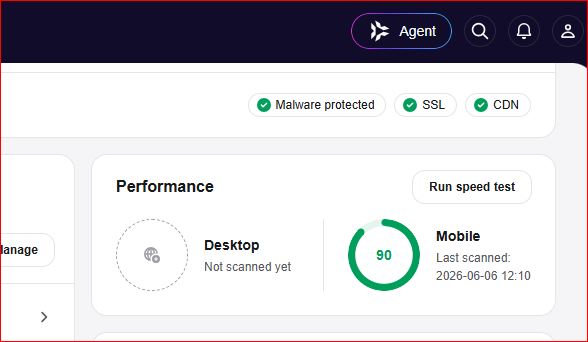
    In this early snapshot, we see some foundational security checks marked with green checkmarks—specifically Malware protected, SSL, and CDN. These are critical baseline requirements for any site attempting to pass a manual or automated AdSense review.

    However, look at the performance breakdown:

    • Desktop Performance: Marked as “Not scanned yet”. Leaving major platforms unverified is a rookie mistake. Google tests your site across multiple viewports, and you should too.
    • Mobile Performance: Showing a score of 90, last scanned on 2026-06-06. While 90 is decent, a static score from months ago doesn’t reflect real-time optimization, and mobile latency is where most publishers fail their Core Web Vitals assessment.

    Phase 2: Fully Optimized & Verified

    Now, look at what happens after a comprehensive code cleanup, database optimization, and cache configuration protocol is applied.

    Notice the dramatic shift in numbers:

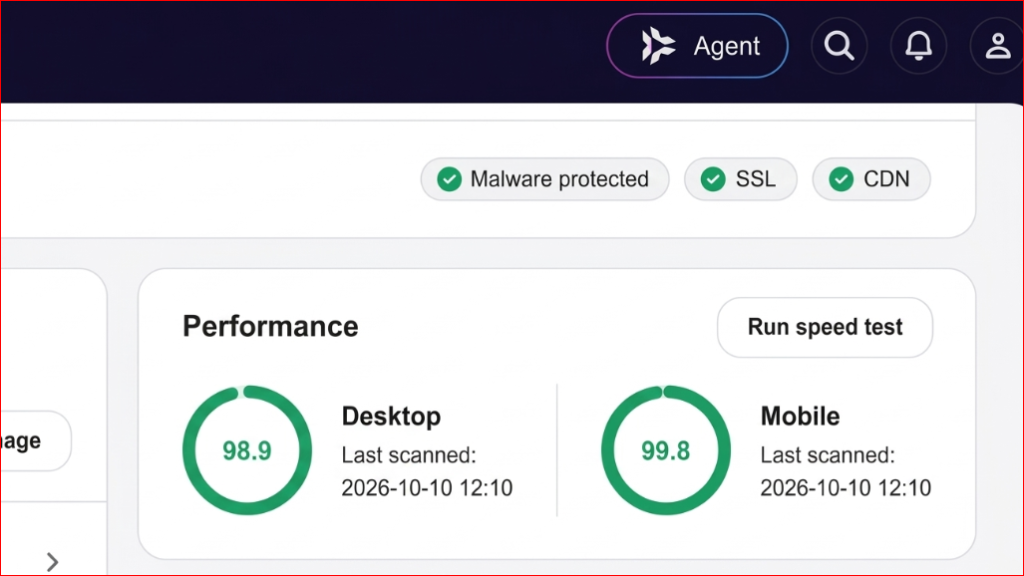
    • Desktop Performance: Rocketing up to an exceptional 98.9, scanned fresh on 2026-10-10.
    • Mobile Performance: Maximized at 99.8, scanned on the exact same date.

    This is the gold standard. When an automated crawler or a human policy reviewer evaluates your web property, seeing sub-second load times and elite performance scores across both mobile and desktop builds immediate technical trust.

    The Core Pillars of AdSense Technical Compliance

    Google AdSense doesn’t just evaluate your written words; it evaluates the entire environment where those ads will render. Let’s break down the three non-negotiable pillars you see highlighted in our diagnostic panels:

    1. SSL Encryption (Secure Sockets Layer)

    An active SSL certificate (indicated by the secure padlock and HTTPS protocol) is mandatory. AdSense explicitly penalizes or outright rejects unencrypted HTTP sites because user data safety is paramount. If visitors input personal information or interact with ads on an unencrypted page, browser warnings will destroy your credibility instantly.

    2. CDN Integration (Content Delivery Network)

    Relying on a single origin server located halfway across the world is a recipe for high latency. Integrating a robust CDN ensures that your static assets (CSS, JavaScript, images) are cached and served from edge locations closest to your actual users. Faster asset delivery directly improves your Largest Contentful Paint (LCP) and First Input Delay (FID), keeping your Core Web Vitals well within the “Good” threshold.

    3. Malware Protection & Clean Code

    Ad networks have zero tolerance for injected malicious scripts, deceptive redirects, or compromised database tables. Running routine malware scans and maintaining clean PHP, HTML, and JavaScript ensures your site remains a safe environment for advertisers and readers alike.

    Actionable Steps to Scale Your Site to 98+ Performance

    Achieving scores above 98 on both mobile and desktop doesn’t happen by accident. Here is the exact blueprint I follow when optimizing WordPress or custom-coded sites:

    • Audit and Strip Bloated Plugins: Too many publishers install a separate plugin for every minor feature. Audit your codebase, remove inactive plugins, and rely on lightweight, native code where possible.
    • Leverage Next-Gen Image Formats: Heavy JPEGs and PNGs are the #1 killer of mobile speed scores. Convert your media library to WebP or AVIF formats and implement strict lazy loading so off-screen images don’t block initial rendering.
    • Optimize JavaScript Execution: Defer non-critical JavaScript parsing and eliminate render-blocking resources that delay the browser from painting the main content.
    • Implement Aggressive Caching: Utilize server-side page caching combined with browser caching rules to serve pre-rendered HTML files instantly to returning visitors.

    Conclusion

    Passing an AdSense policy review is a holistic process. You need original, valuable content, a clean user interface free of deceptive navigation, and—most importantly—a lightning-fast, secure technical foundation. By treating your website’s performance with the same care as your writing, you create an optimal environment for user engagement, lower bounce rates, and long-term monetization success.