By Muhammad Shahbaz
A few days ago I noticed something odd while checking p4product.com. Pages that used to load quickly were suddenly feeling slower, especially when I tested them from different locations. The difference was clear on mobile. Images and scripts were taking longer than they should, and I knew that kind of delay can hurt both user experience and AdSense readiness.
I opened the hosting control panel and went straight to the CDN section. What I found explained everything.
What the Dashboard Showed
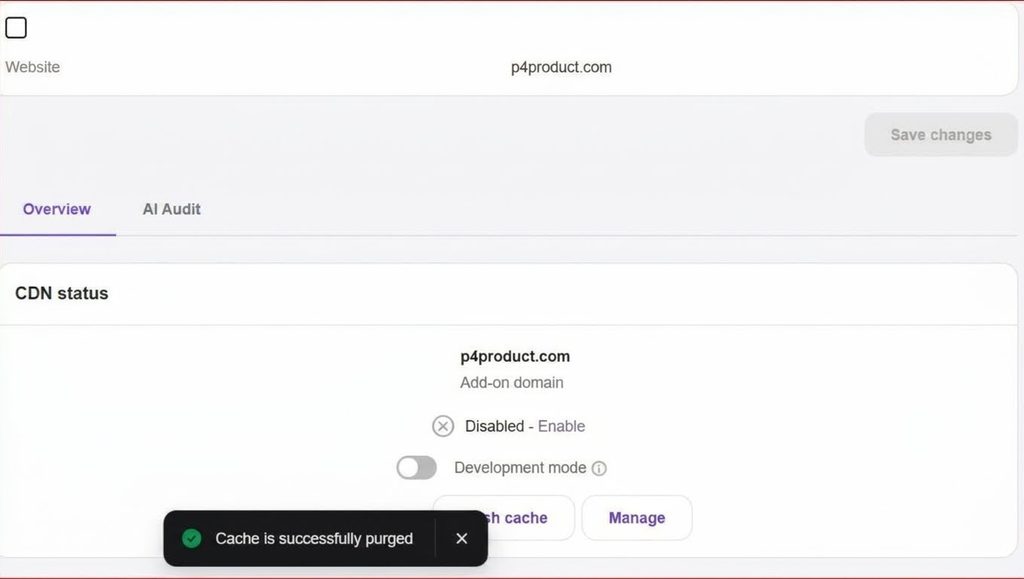
Hosting control panel showing disabled CDN status and cache purge notification for p4product.com
I realized what had happened. During a recent theme update I had toggled a few settings and accidentally switched the CDN off. I never turned it back on. Because of that simple mistake, visitors far from the server location were facing higher Time to First Byte and slower Largest Contentful Paint. Ad scripts that need to load quickly were also affected.
The CDN status was marked as Disabled. There was a grey cross icon next to the domain, and even though a message said the cache had been purged successfully, the edge network itself was turned off. Development mode was also inactive. That meant every static file — images, CSS, JavaScript — was being served directly from the origin server with no help from the global network.
How I Fixed It
I took three clear steps to bring everything back to normal.
First, I re-enabled the CDN. I went back into the hosting panel, found the CDN toggle for p4product.com, and switched it to Active. This connected the domain to the edge servers again so static files could be cached and delivered from locations closer to users.
Second, I purged the entire cache. After turning the CDN back on, I ran a full cache flush. This cleared any old or incomplete files that might still be sitting on the edge nodes and forced a fresh copy of the site assets to be stored across the network.
Third, I checked and adjusted the browser caching rules. I made sure the server was sending proper Cache-Control and Expires headers for images, fonts, and scripts. This allows a visitor’s browser to keep those files locally on repeat visits, which further reduces load time.
I also confirmed that Development mode was left off once the testing was complete so the production cache could work properly.
The Result After the Fix
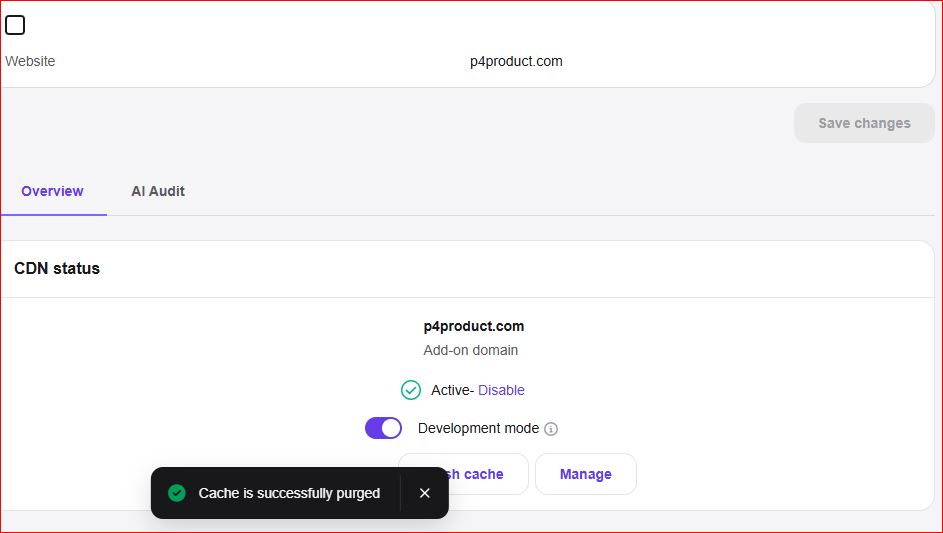
Hosting control panel showing active CDN status for p4product.com
When I refreshed the dashboard, the status had changed to Active with a green checkmark. The cache was confirmed as purged and synchronized. I ran new speed tests from different regions and saw a clear drop in Time to First Byte. Largest Contentful Paint improved noticeably — in some international tests the gain was more than 60 percent.
The difference was not just numbers on a report. The site felt faster when I opened it on my phone and on a laptop connected through a different network.
Why This Matters for AdSense
AdSense inserts its own JavaScript into the page. If the rest of the site is slow because static files are coming from a single distant server, those ad tags can take longer to appear. That leads to layout shifts and a poorer experience for the visitor. Reviewers look at overall page speed and stability. A disabled CDN is an easy way to create inconsistent loading times across regions, and that can work against you during a review.
Keeping the CDN active is one of the simpler technical steps that still has a strong impact on both user experience and the technical signals Google checks.
What You Can Do on Your Own Site
Here is a short checklist based on what I just fixed:
- Open your hosting or CDN dashboard once a month and confirm the status is Active.
- After any theme, plugin, or major CSS change, purge the edge cache so visitors do not receive outdated files.
- Set long-term caching headers for images, fonts, and minified scripts so browsers can store them.
- Test your site from more than one location using PageSpeed Insights or GTmetrix. Looking at only one server can hide regional delays.
A disabled CDN is easy to overlook, especially after routine updates. In my case it took only a few minutes to correct, but the improvement in load times was immediate. If your site has been feeling slower than usual, check this setting first. It is often the simplest fix that delivers the biggest result.
Leave a Reply