
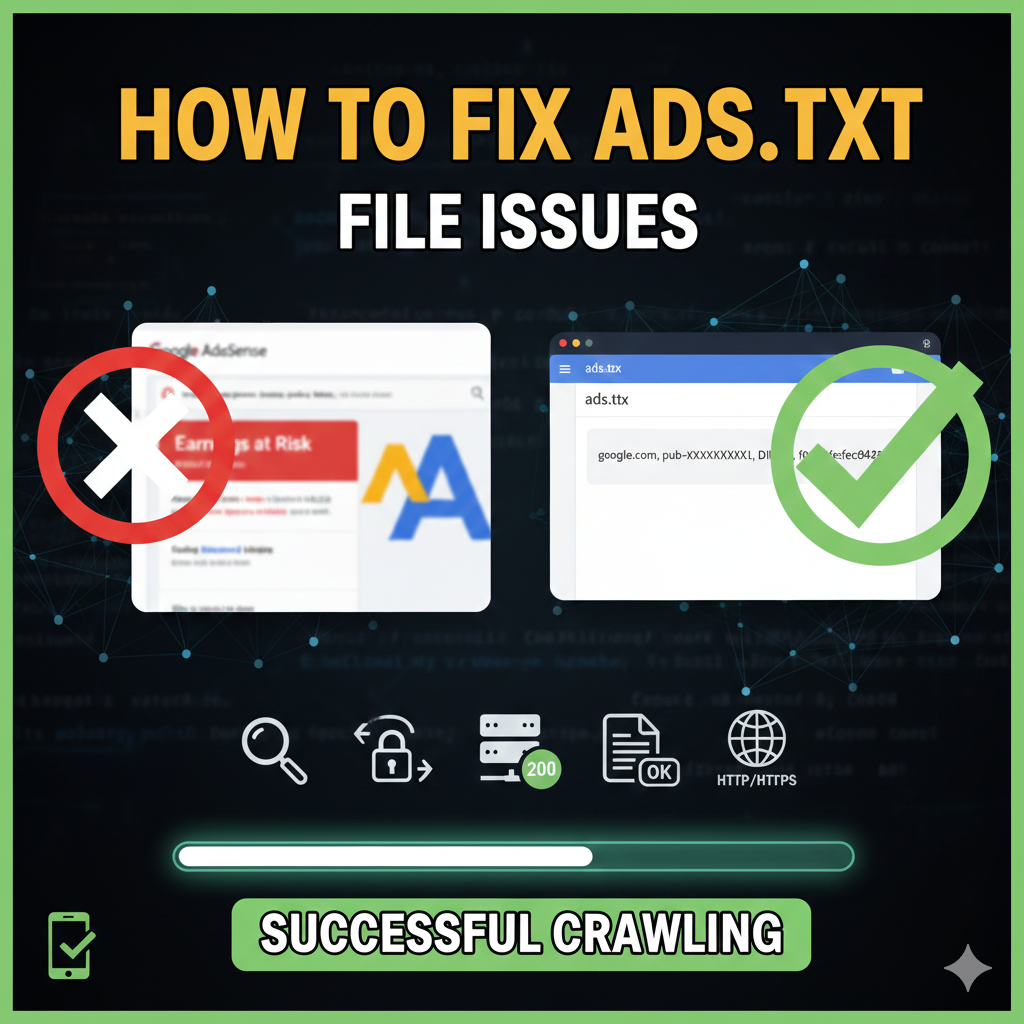
If you have already uploaded your ads.txt file but the warning in your AdSense dashboard won’t go away, the issue is likely not the file itself, but Google’s ability to “see” it. In 2026, many advertisers strictly skip any site that isn’t verified.
Follow these six technical recommendations to ensure your file is crawled and your revenue is protected.
1. Confirm the HTTP Status is “200 OK”
The most common “questionable” error is a Soft 404. This happens when your site shows a “File Not Found” page but tells the crawler the page loaded successfully (Status 200).
- The Fix: Use a “Header Checker” tool to verify that
yourdomain.com/ads.txtreturns an HTTP 200 OK status. If it returns a 404, the entries are purged; if it returns a 500 error, Google only waits 5 days before stopping ads.
2. Verify Root Domain Accessibility
Google’s crawler always starts at the root domain. If your site uses a “www” prefix, the root must point to it correctly.
- The Fix: Ensure
example.com/ads.txteither hosts the file directly or uses a 301 redirect towww.example.com/ads.txt. If the redirect leads to your homepage instead of the text file, the crawl will fail.
3. Check for Robots.txt Restrictions
Your robots.txt file acts as the “gatekeeper” for your site. If it blocks the AdSense crawler, your file will never be seen.
- The Fix: Open
yourdomain.com/robots.txtand ensure it does not disallow theads.txtpath. - Best Practice: Add these lines to explicitly allow access:
User-agent: GooglebotAllow: /ads.txt
4. Use a Plain Text Editor Only
Formatting errors like hidden whitespace or “smart quotes” from rich text editors (like Word or Google Docs) make the file impossible for a bot to read.
- The Fix: Always use Notepad (Windows) or TextEdit (Mac, set to “Plain Text”).
- Check for UTF-8: Ensure the file is saved in UTF-8 encoding without a Byte Order Mark (BOM).
5. Ensure Reachability via HTTP and HTTPS
Google crawls both protocols. If your site is only available via HTTPS but the HTTP version of the ads.txt URL returns a “Hard 404,” Google may purge your authorized entries.
- The Fix: Test both
http://yourdomain.com/ads.txtandhttps://yourdomain.com/ads.txt. Both must load the same file or redirect correctly to the secure version.
6. Correct Publisher ID Formatting
A single typo in your publisher ID (e.g., missing a digit or adding an extra space) will invalidate the entire file.
- The Fix: Copy your ID directly from AdSense > Account > Account Information.
- Standard Format:
google.com, pub-XXXXXXXXXXXXXXXX, DIRECT, f08c47fec0942fa0